Paperform Integration Explained
Introduction
This guide will walk you through setting up a webhook in Paperform to send your form submission data to an external system in real-time.
⚙️ How to Set Up a Webhook
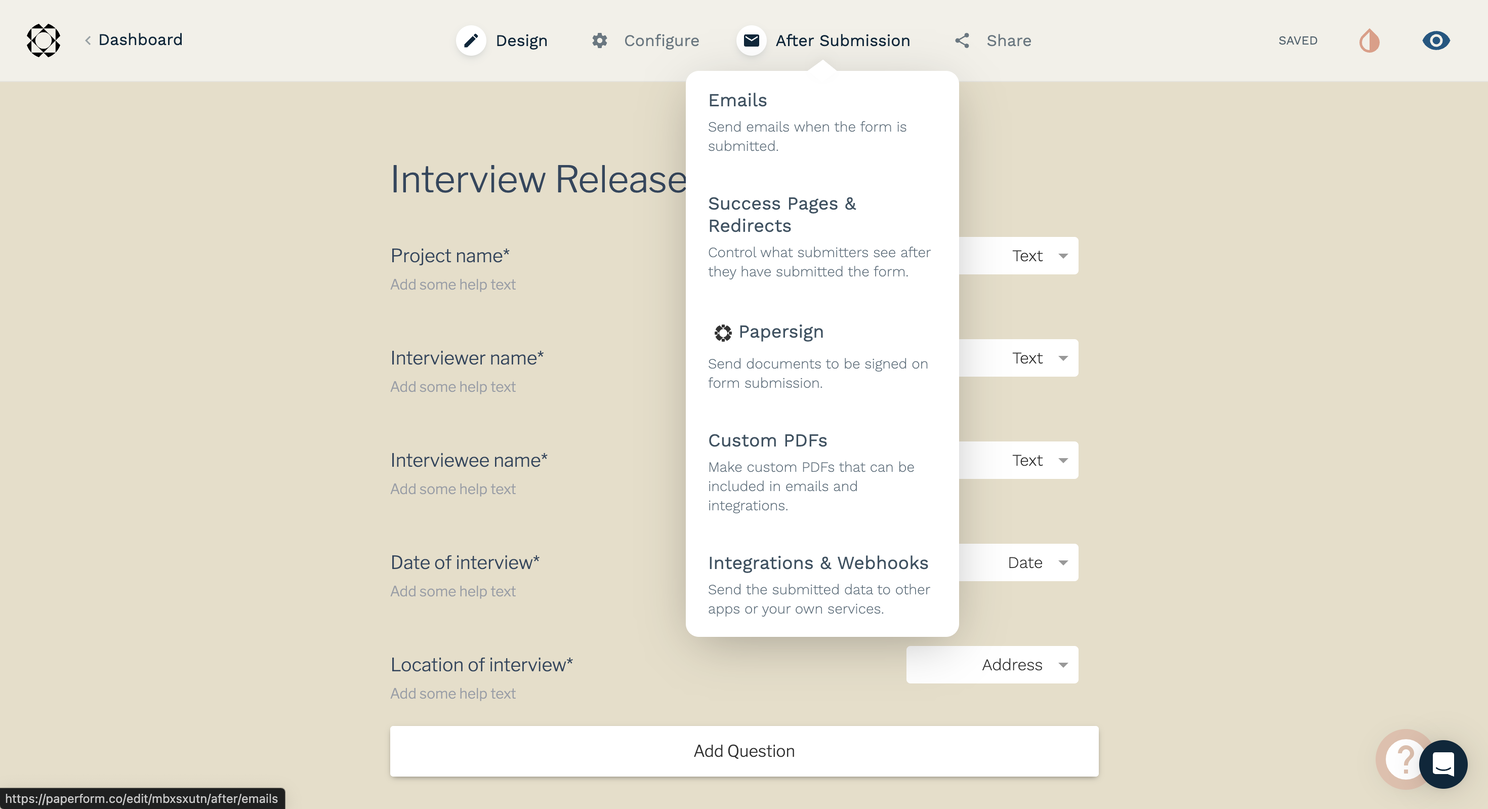
- In the form editor, navigate to After Submission in the top bar and choose Integrations & Webhooks.
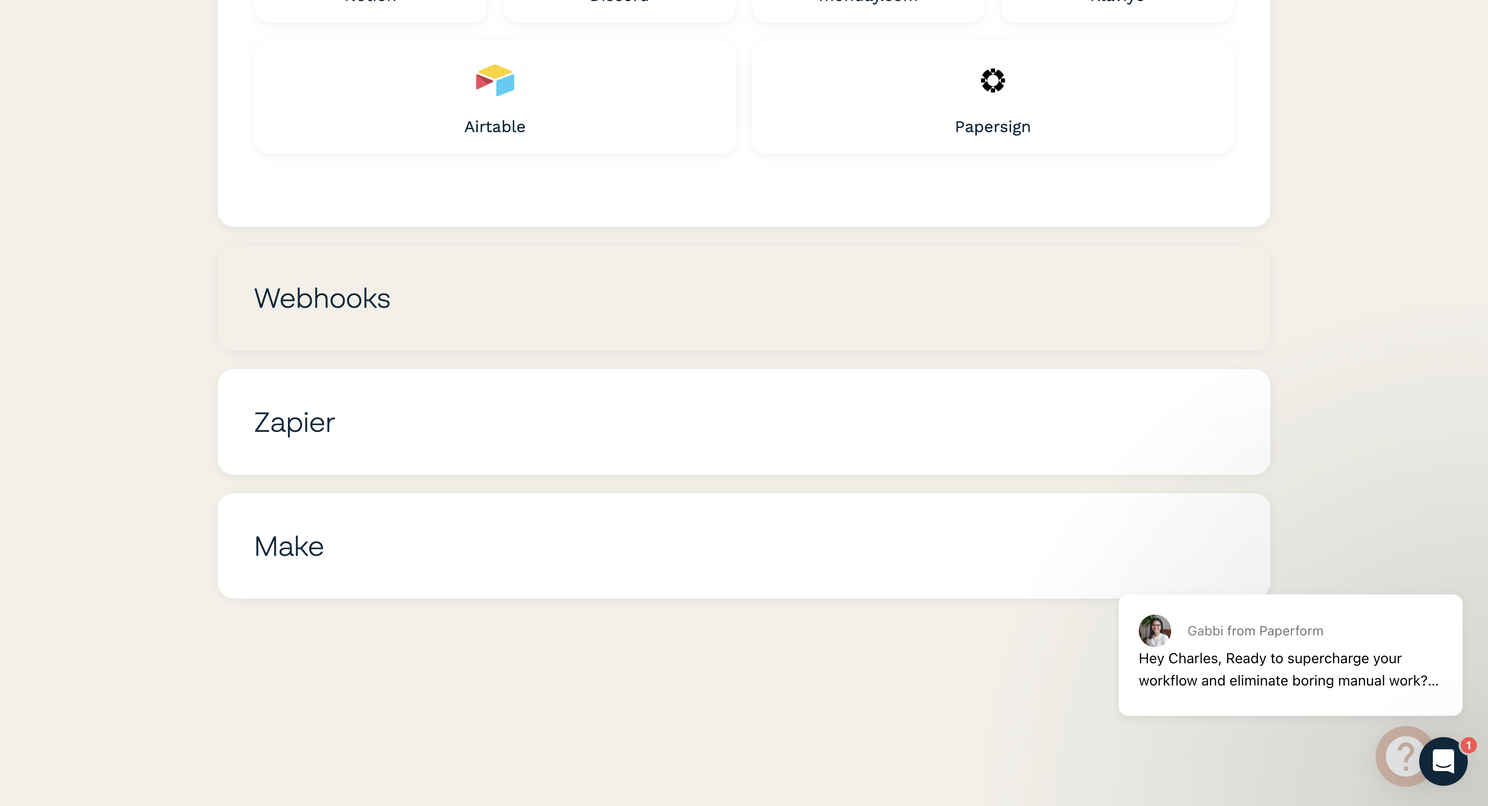
- Scroll down and click on the Webhooks section to open the configuration options.
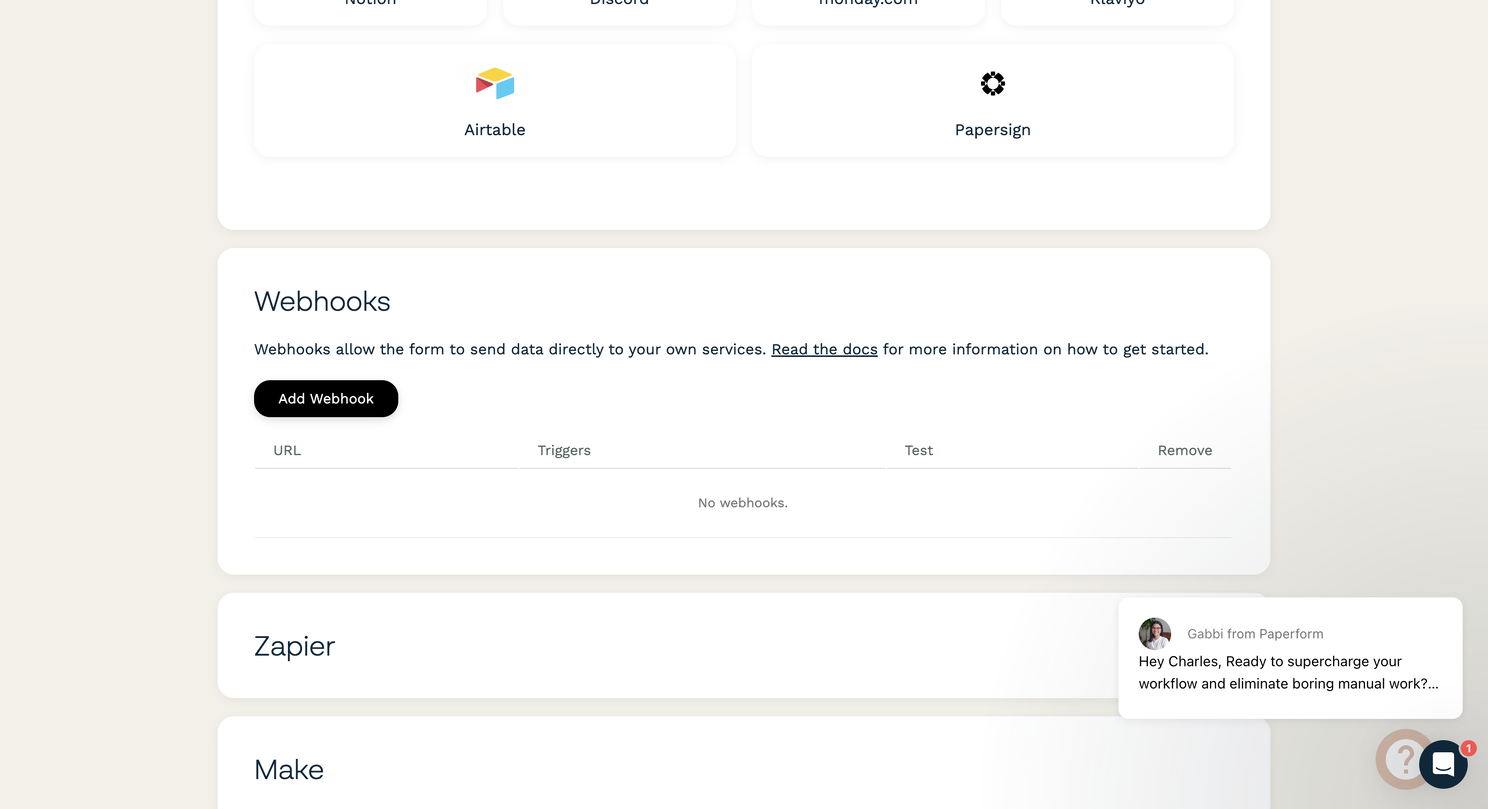
- Click the “Add Webhook” button.
- Enter your destination Webhook URL in the field provided.
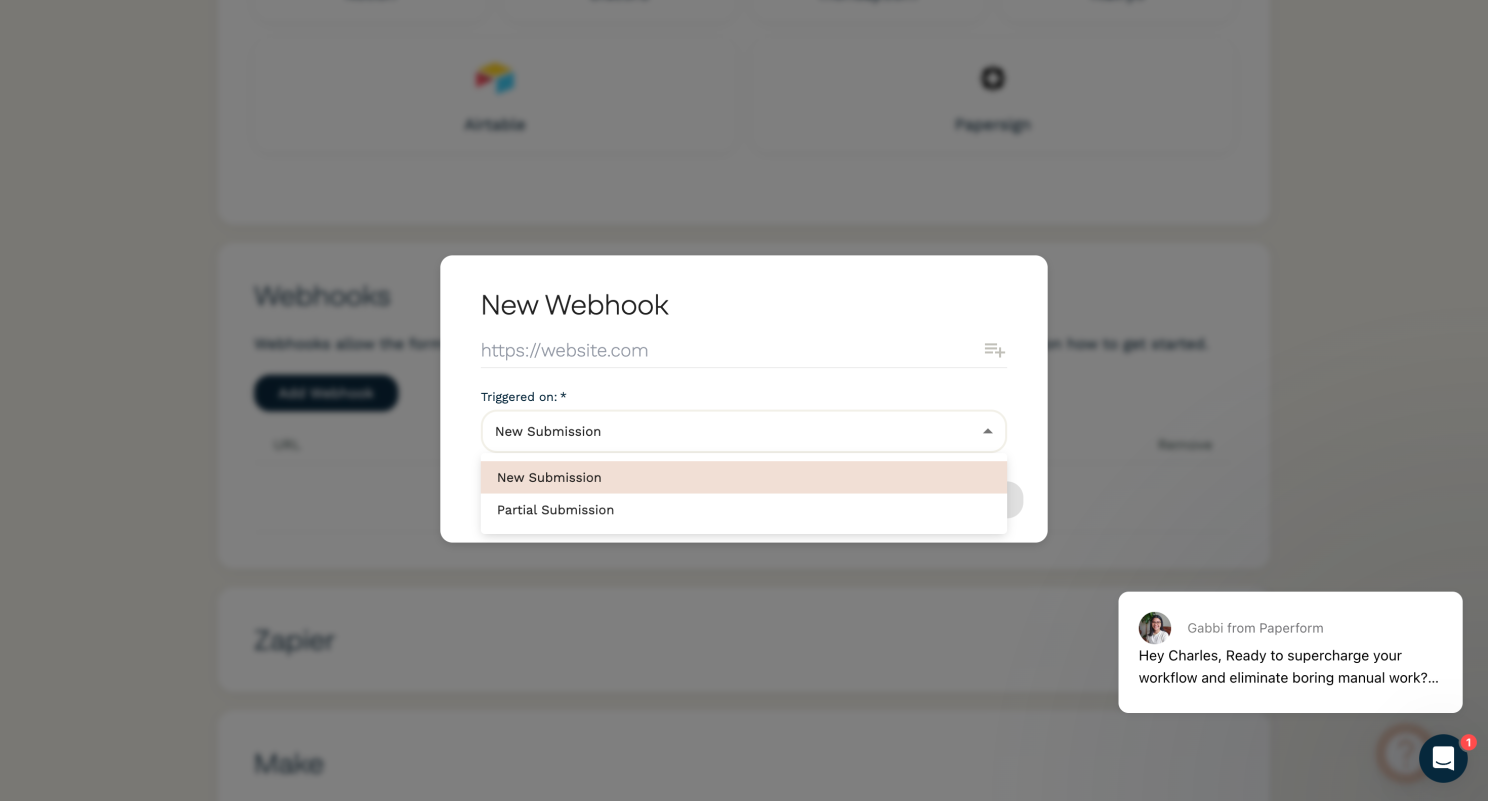
- From the “Triggered On” dropdown menu, select whether the webhook should fire on a New Submission or a Partial Submission.
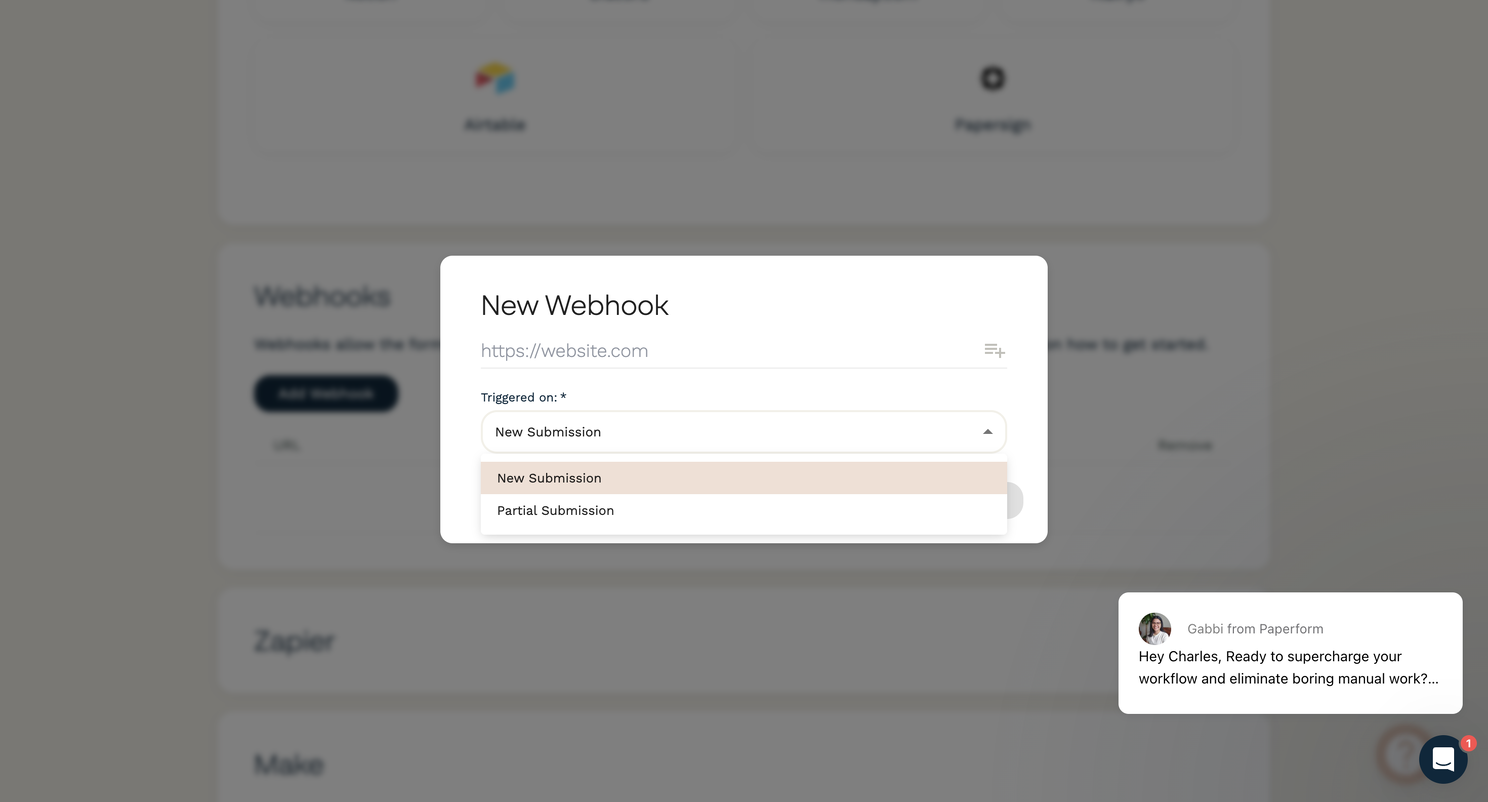
- Click the “Create” button to save and activate your webhook.
No Custom Headers Paperform does not currently support customizations of request headers. If your endpoint requires authentication (like an API key), you must include it as a query parameter in the webhook URL itself (e.g., https://yourendpoint.com/hook?auth=YOUR_API_KEY).
💡 Passing Data with Answer Piping
If you need to pass specific answers as query parameters in your webhook URL, you can use Paperform’s “Answer Piping” feature.
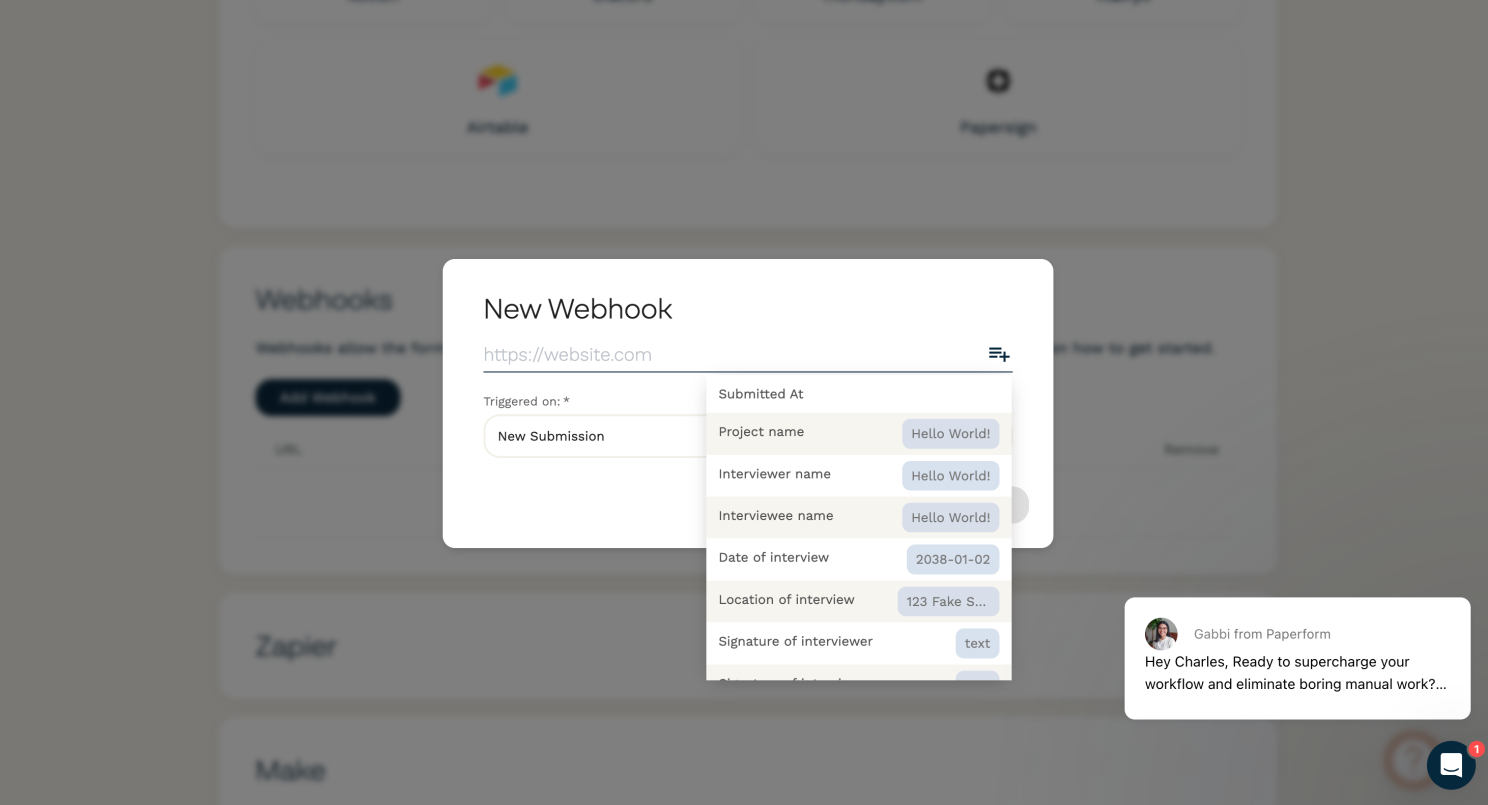
To add a dynamic value from a form field, either type {{key}} directly into the URL field (replacing “key” with the question’s pre-fill key) or use the + menu to the right of the input to select the desired question.
📄 Sample JSON Payload
When a webhook is triggered, Paperform sends a POST request with a JSON payload containing all the submission data. Here is an example of what that payload looks like:
{
  "data": [
    {
      "title": "question 1",
      "description": "This is the first question",
      "type": "address",
      "key": "ba7ri",
      "custom_key": "address_1",
      "value": "343 Tester Road, Snohomish, Washington, 98290, United States"
    },
    {
      "title": "question 2",
      "description": "This is the second question",
      "type": "text",
      "key": "tgp8",
      "custom_key": null,
      "value": "Test 123"
    }
  ],
  "submission_id": "XXXXXXXXXXXXXXXXXXX",
  "created_at": "2017-06-09 09:51:23",
  "ip_address": "192.168.10.1",
  "charge": null
}
🧪 Testing Your Webhook
You can test a webhook at any time to ensure it’s working correctly.
- Method 1: Click the “Test” button next to your webhook in the configuration settings. This will send the data from the most recent form submission to your URL.
- Method 2: Simply submit a new entry to your live form.
Note The “Test” button will only function if the form has been submitted at least once previously.